Gabriel Chow's Coding Projects
Hi, I'm Gabriel! I love building robots and coming up with creative ways to solve real-world problems. I started learning robotics in Primary 4 with Lego Mindstorms and block-based coding. That’s where I first learned how to control robots and test different ideas. After a while, I wanted to try something more advanced, so I started learning Python. Python helped me think step by step, write my own programs, and even solve tricky math problems without pen and paper. I also explored game development using Pygame, creating fun and educational games for my friends to play. Competing in these games makes learning feel like a fun challenge instead of just studying. Combining robotics and Python makes me excited because I can build projects that help people, make learning more enjoyable, and inspire others to be creative with technology. I hope you enjoy seeing what I’ve built!
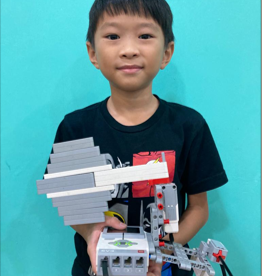
Ping Pong Racket
I learnt how to use the LEGO technic parts to create different designs. Using the coding concept of conditionals (if-else), together with different sensors, I coded my designs to do certain actions only if a specific condition is met. Among many other projects, I created a ping pong racket that hits the ball if the touch sensor is activated.
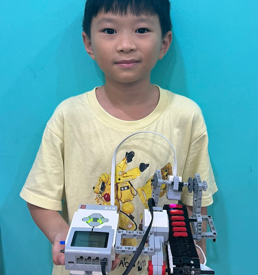
Sushi Belt
I enjoy going to the restaurant for sushi and decided to recreate an automated one. Using the LEGO technic parts and a colour sensor, I created a sushi belt that is activated to move only when it detects the colour green. This reduces unnecessary motion and saves energy.
Distance Sensor Coin Dispenser
Inspired by arcade coin dispensers, I applied the design principles and coding skills I learned to build a distance-activated coin dispenser. The dispenser uses two ultrasonic sensors that detect my hand in a specific sequence within a defined distance threshold. When both sensors are triggered in order, the mechanism opens to release coins. This project demonstrates how sensor integration and conditional logic can create automated systems, similar to those used in vending machines.
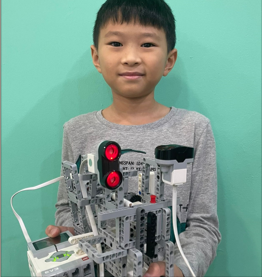
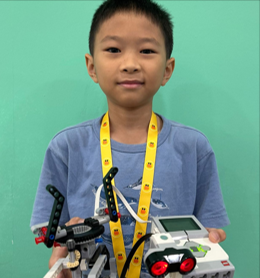
Automated Rabbit Head Turret
My younger siblings loved playing with their toy rabbit head, which spins when the wind hits it. They used to manually spin and stop it, which was fun but limited. To make it more interactive and engaging, I decided to create an automated version of the toy. In this upgraded version, the rabbit head starts spinning automatically as soon as the program runs. When the ultrasonic sensor detects someone nearby—such as a child approaching—the spinning stops, and the toy returns to its original position.
Two Colour Sensors Controlled Tea Cup Ride
Playing the top is my childhood game and I decided to recreate a sensor-controlled spinning top using LEGO technic parts and coded it to move when it is activated by a colour sensor. The direction it moves is controlled by the reading of the ultrasonic sensor. It is designed to enhance user engagement and ensures consistent gameplay with minimal effort needed for monitoring or control.
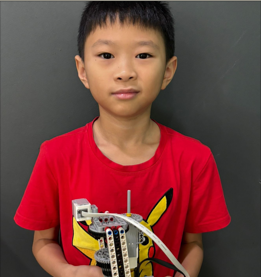
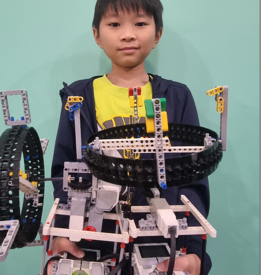
Standard Robot to Follow the Line
I built a LEGO model of two swings that are fully automated to replicate how a real amusement ride would respond to inputs from sensors. The colour sensor is used to decrease the rotation speed of swing 1 while the touch sensor increases the speed of swing 2. This enhances user experience and safety.
Description:
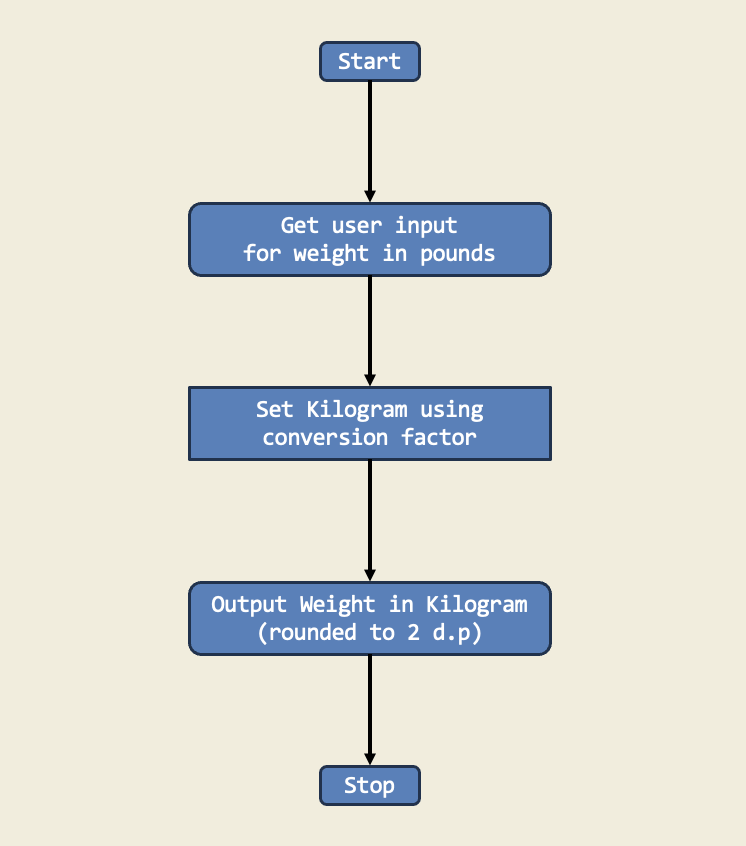
In this project, I learned how to convert weight from pounds to kilograms by multiplying by a conversion factor. This is important because it teaches us how to change one unit of measurement to another so we can compare different types of data.
Diagram:
Trinket:
Description:
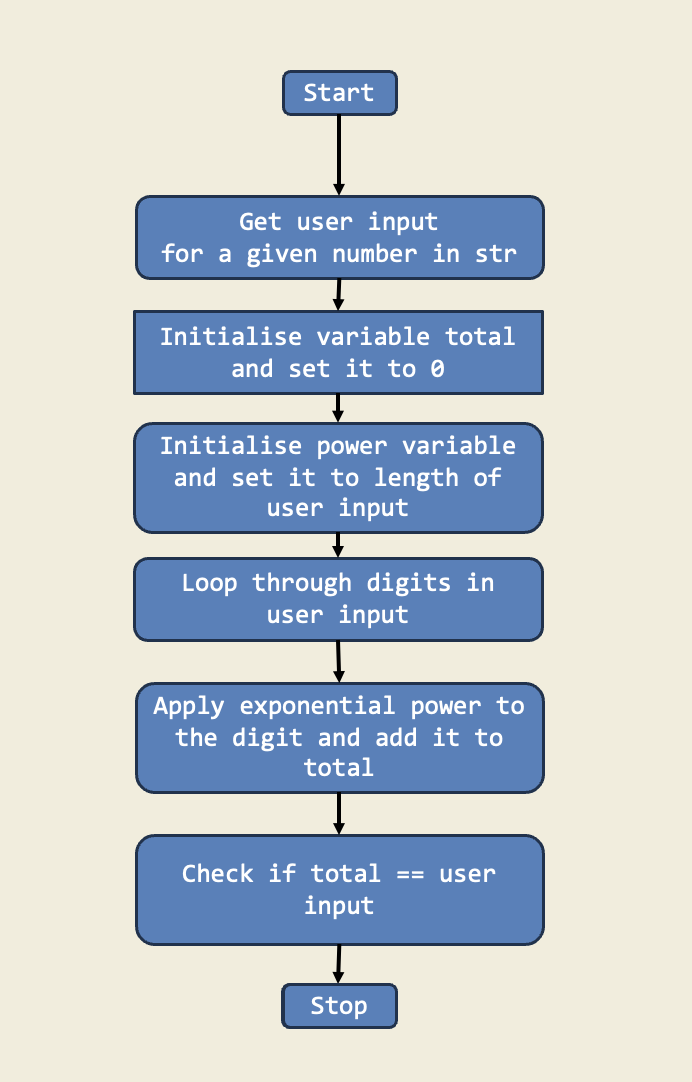
I have implemented a Python script named armstrong_no_checker to check if a given number is an Armstrong number. An Armstrong number for a 3-digit number is a number that is equals to the sum of the cubes of its digits. For example, 153 is an Armstrong number because 1^3 + 5^3 + 3^3 = 153. This project demonstrates the use of functions, loops, and conditionals in Python to solve mathematical problems. The script prompts the user to enter a number and checks if it is an Armstrong number by calculating the sum of the cubes of its digits and comparing it to the original number.
Diagram:
Trinket:
Students learn how to build control flow into the python code by including if, else, and elif statements. This includes boolean expressions and variables, relational operators (equals and not equals), boolean operators (and, or, not), if, else and elif statements.
Description:
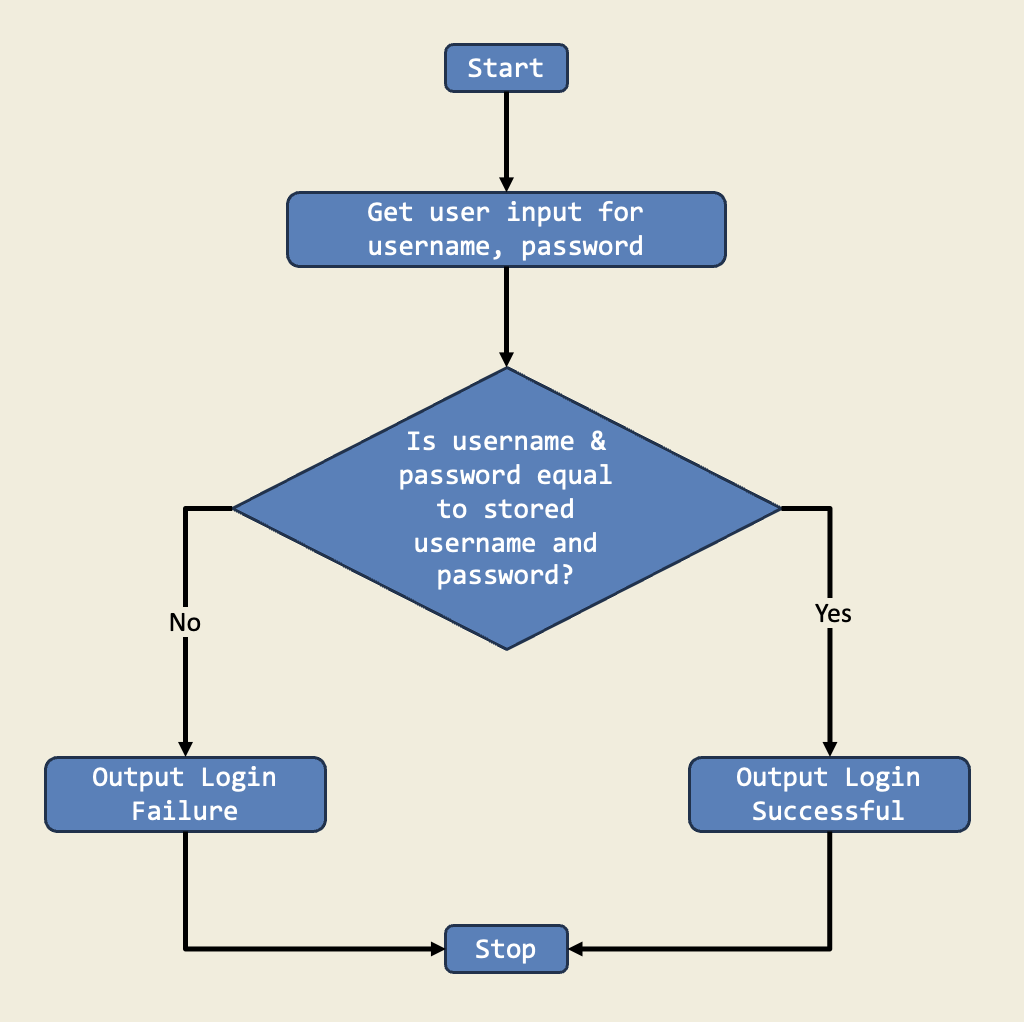
This project is a simple login system that checks if the entered username and password match preset values. If they do, the user is logged in; otherwise, they must try again. It demonstrates how if-else statements handle multiple outcomes based on user input.
Diagram:
Trinket:
Description:
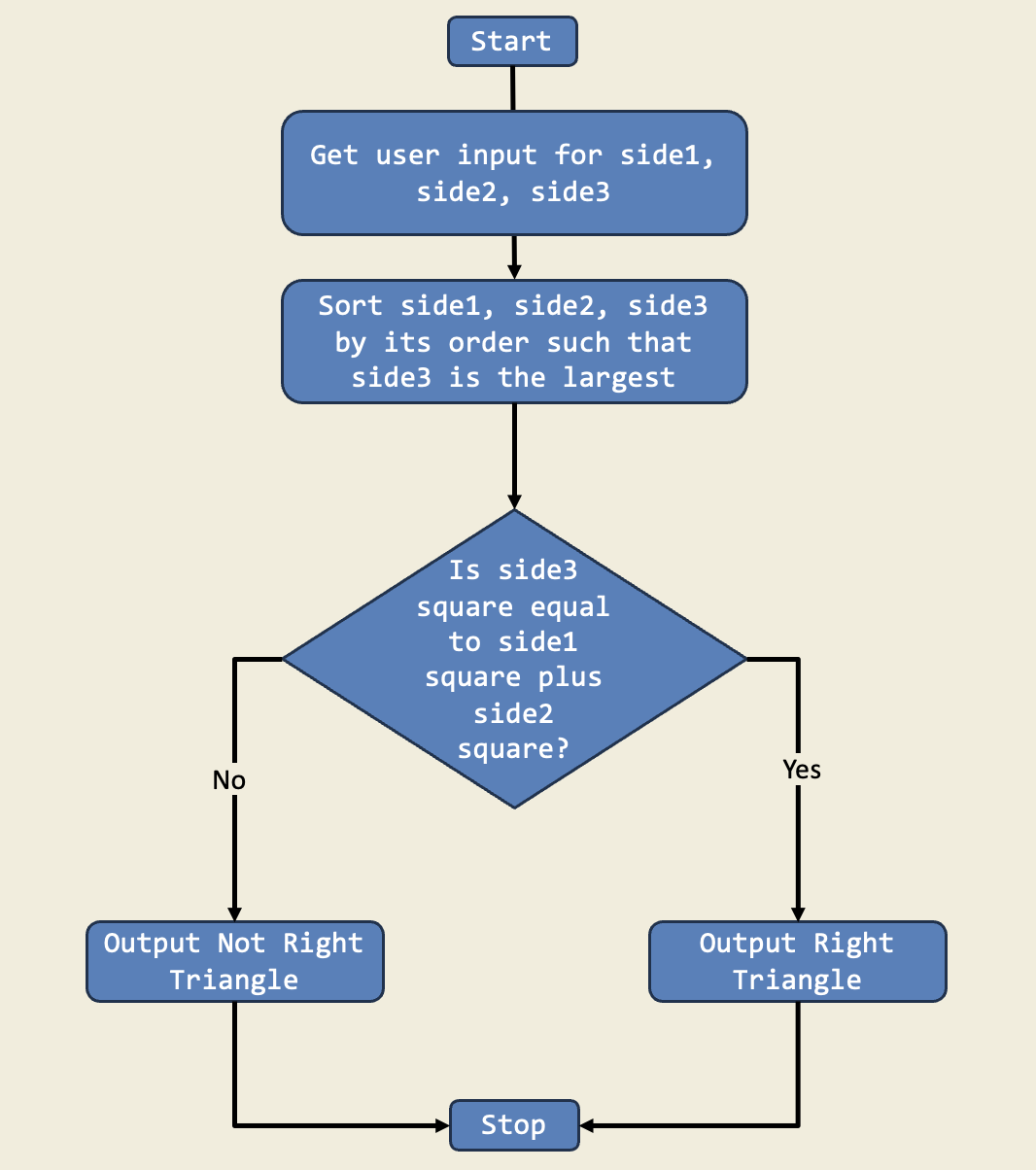
In this project, I used if-else statements to check if a triangle is right-angled. I asked for three sides, sorted them, and used the Pythagorean theorem to decide if the triangle was right. This is important because if-else lets the program choose different actions based on the input.
Diagram:
Trinket:
Students learn to use list, for loops and range to iterate over multiple sequences. This includes datatypes in a list, empty list, list methods, growing a list, accessing list elements with positive and negative index, modifying list, for loops with range, loop control with break and continue.
Description:
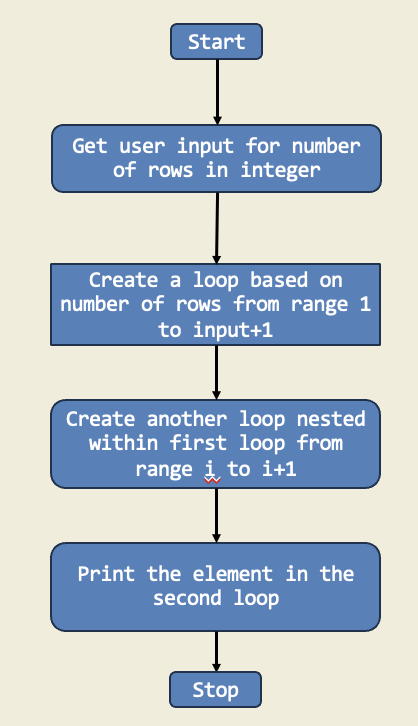
In this project, I created a number pyramid using nested for loops. The outer loop controls the number of rows, while the inner loop prints the numbers in each row. This project demonstrates how to use loops to create patterns and shapes in Python.
Diagram:
Trinket:
Description:
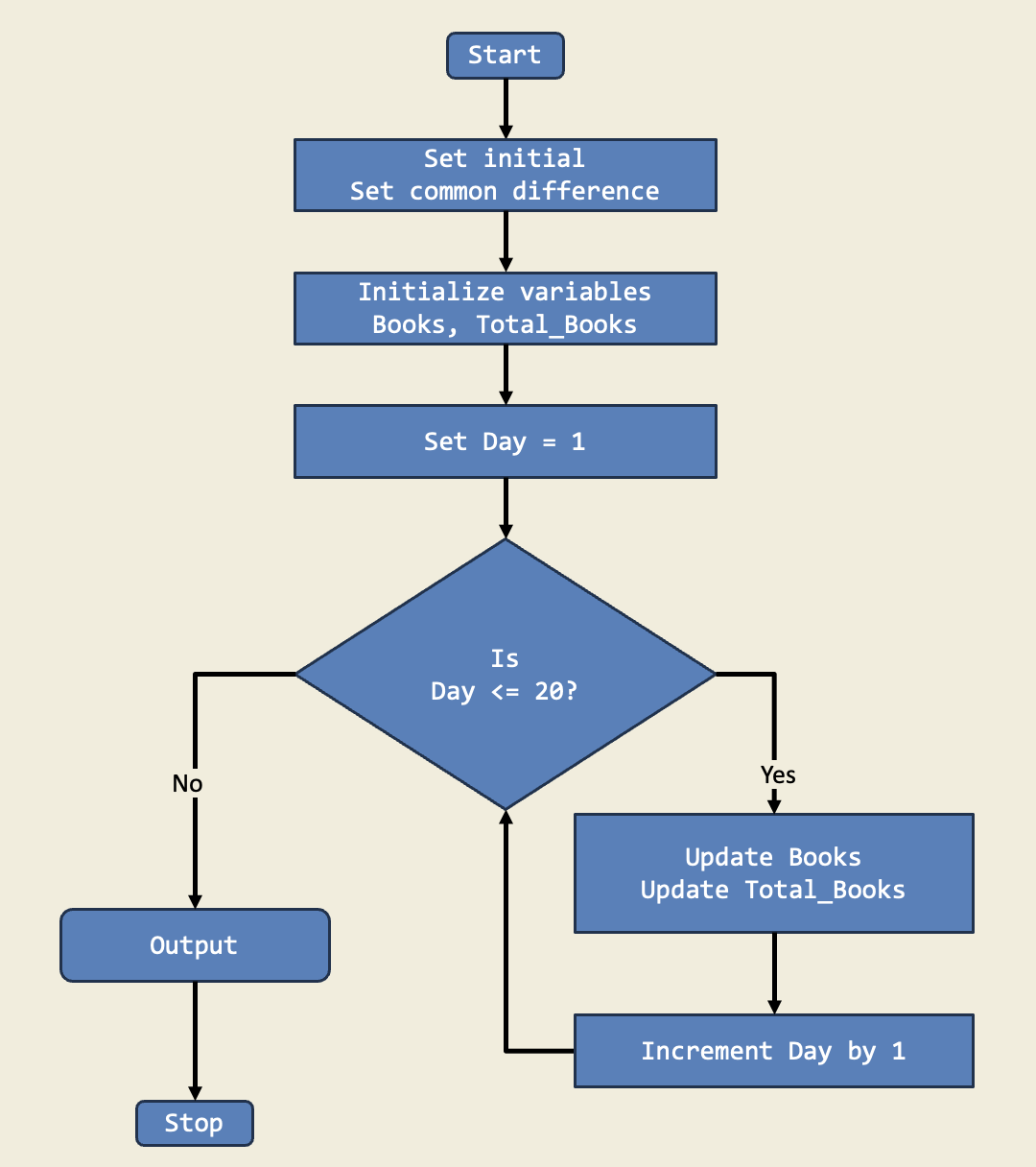
In this project, I managed an imaginary library's inventory using a for loop to calculate the number of books on day 20 and the total after 20 days. This project shows how for loops make it easy to perform repetitive tasks.
Diagram:
Trinket:
Description:
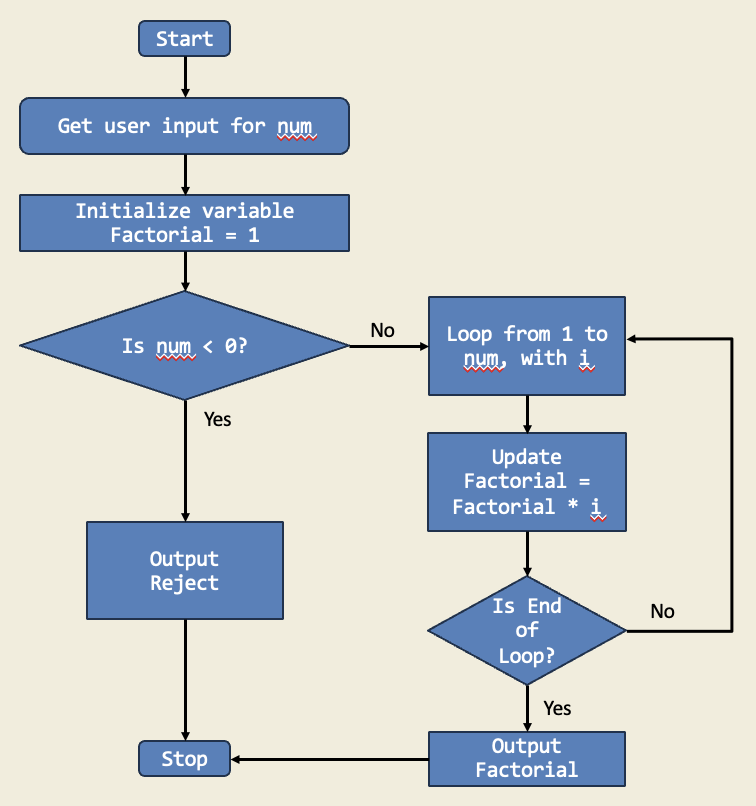
I organized a math competition among my friends, and one of the challenges involved calculating the factorial of a given number. I created a Python script that took a user input and calculated the factorial of the given number.
Diagram:
Trinket:
Description:
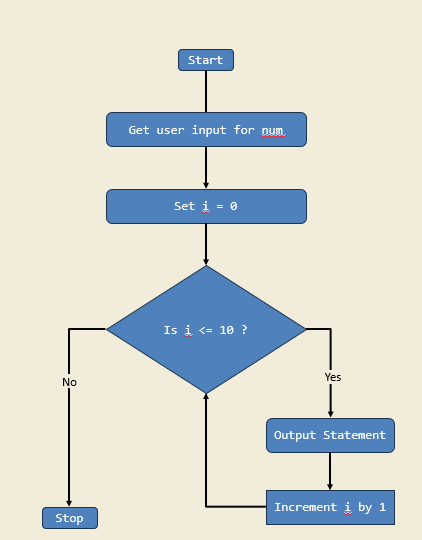
I have created a Python program named my_multiplication_table.py that takes an integer input from me. It generates the multiplication table of the entered number using a while loop.
Diagram:
Trinket:
Description:
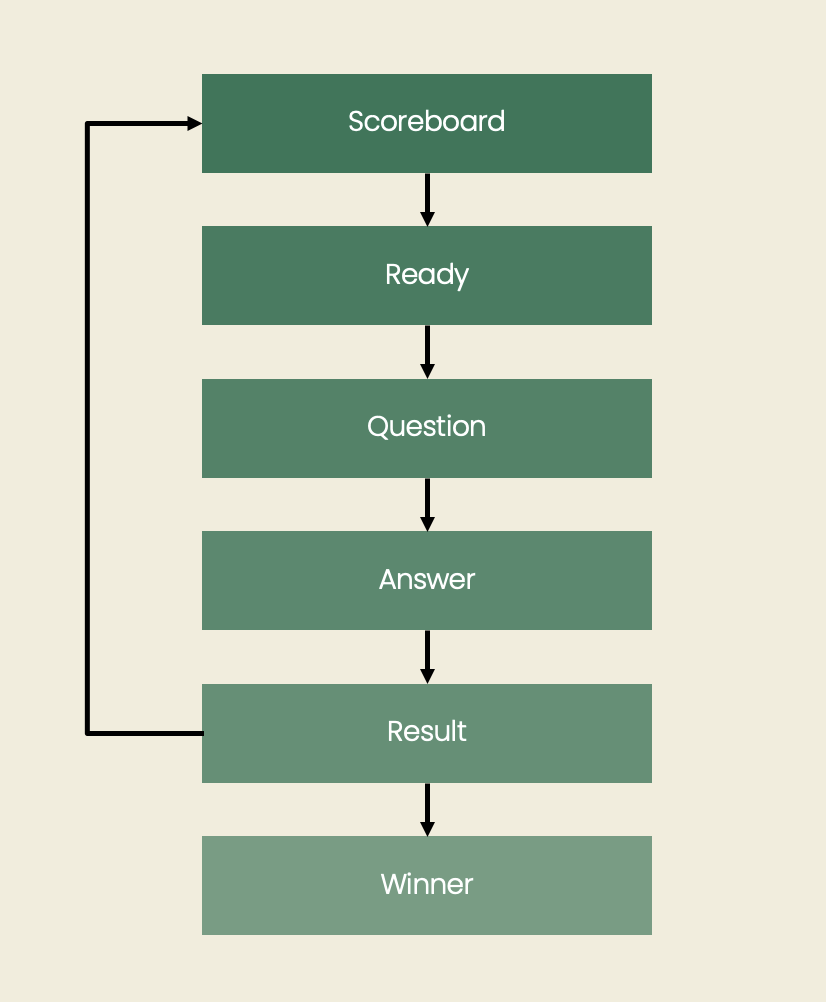
In this project, I created a game called "WhatAnimal?" using Pygame. I love animals, so I wanted to design a game where each turn shows a picture of a different animal for you to guess! I used my passion for animals and my curiosity about coding to make this fun challenge.
To build this game, I used object-oriented programming (OOP) to organize my code into clear, manageable parts. I made separate classes for the game screen, for drawing the animal images, and for keeping track of scores and instructions. It was like building with LEGO blocks – each piece worked on its own, but together they formed an awesome game.
In "WhatAnimal?", each round shows a different animal, like a cat, dog, elephant, or even a zebra! You get to choose the right animal from four options, and there’s a timer to add a bit of excitement. This made the game fun and fast-paced, and it helped me learn how to handle key presses and events to make the game interactive.
Overall, "WhatAnimal?" is not just a guessing game – it’s a playful adventure that shows how coding can be creative and exciting. I hope you have as much fun playing it as I did making it!
Diagram: